All help topics
I blocked an app but my child can still open it
Short answer: Most often another version of the app is still allowed, such as YouTube Kids or YouTube Music next to YouTube. Block every version in App Blocking, make sure blocking isn't paused, and check that Usage access is on for TVCP on the TV.
Updated
When App Blocking works, a blocked app won’t open. The TV sends your child back to the home screen or shows App blocked. If the app still opens, go through these in order.
Check these, in order
- Block every version of the app. Many apps come in several versions. YouTube, YouTube Kids and YouTube Music are three separate apps, and blocking one doesn’t block the others. In the Guardian app, open the Apps tab and switch on every version you want blocked.
- Make sure blocking isn’t paused. If the summary at the top of the Apps tab says Paused, tap the round play button on it to resume blocking.
- Check Usage access on the TV. Open TVCP on the TV. If it shows Turn on protection for this TV with Usage access marked Required, turn it on. App blocking won’t work without it. See Turn on protection.
- Restart the TV completely. Unplug the TV (or the streaming box) for 30 seconds, plug it back in, then open TVCP once.
- Update the TVCP app on the TV. Updates fix app blocking on some TV models. See Update the TVCP app on your TV.
- Let TVCP keep running. Some TVs close apps in the background to save power, which pauses blocking. See Keep TVCP running.
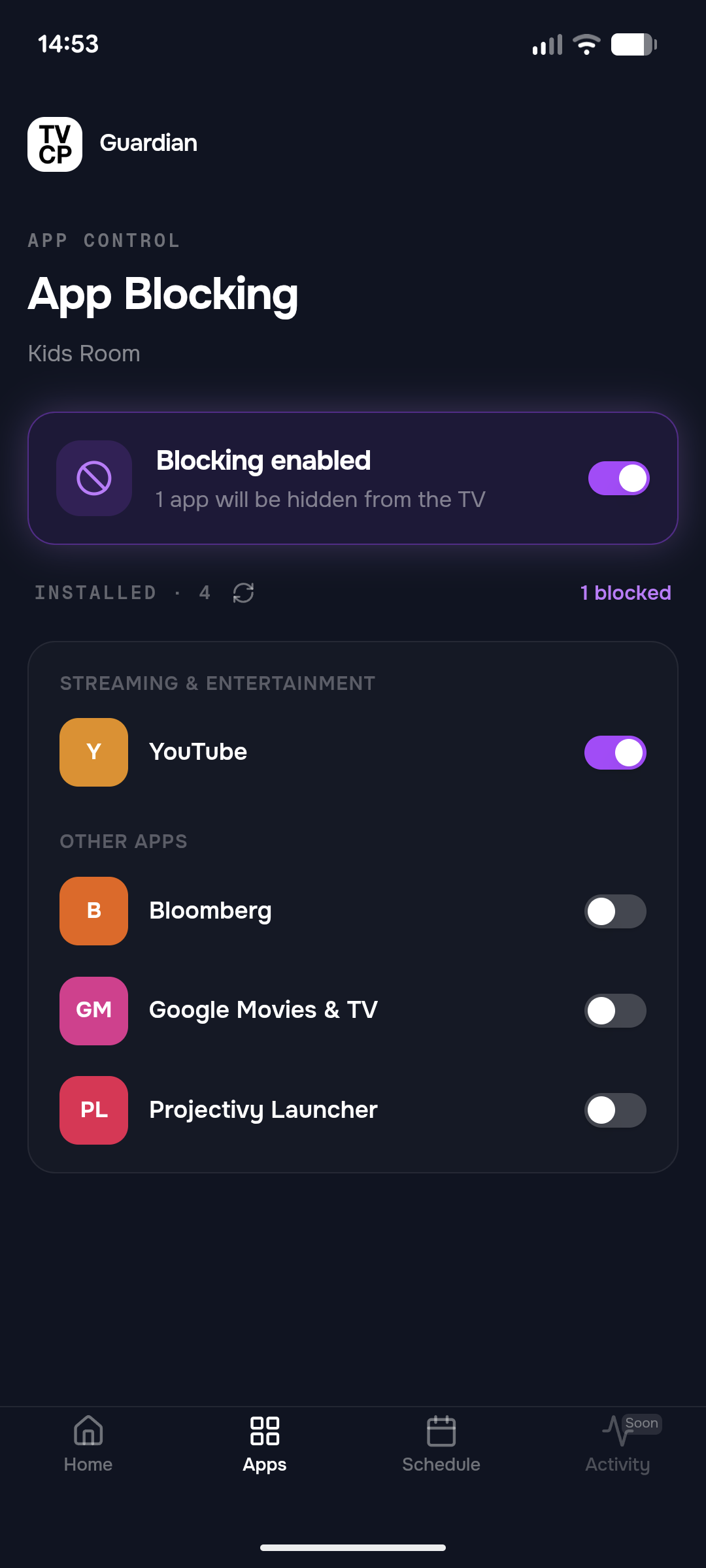
If the app isn’t in the list
If the Apps tab says Permission Needed on TV, the TV hasn’t shared its list of apps yet. Open TVCP on the TV and press Agree on Installed Apps Access. The list appears in the Guardian app shortly after.
An app you’ve installed recently shows up in the list once the TV reports it. Make sure the TV is on and online.
Next steps
Block apps like YouTube or Netflix
Choose which apps your child can't open on the TV, from the Apps tab of the Guardian app.
Can't find "Display over other apps" or "Usage access" on your TV
Where the two settings TVCP needs are on most TVs, and what to do when the setting page does not open.
Keep TVCP running (battery optimization)
Stop the TV from closing TVCP in the background to save power. Optional, but it helps on TVs that close apps.