All help topics
Lock and unlock the TV
Short answer: In the Guardian app, tap Lock TV on the Home screen and the TV shows a lock screen. To unlock, use Slide to unlock TV in the app, or press Unlock on the TV and enter your 4-digit PIN.
Updated
Lock the TV
- Open the Guardian app. If you have more than one TV, check that the Home screen shows the right one.
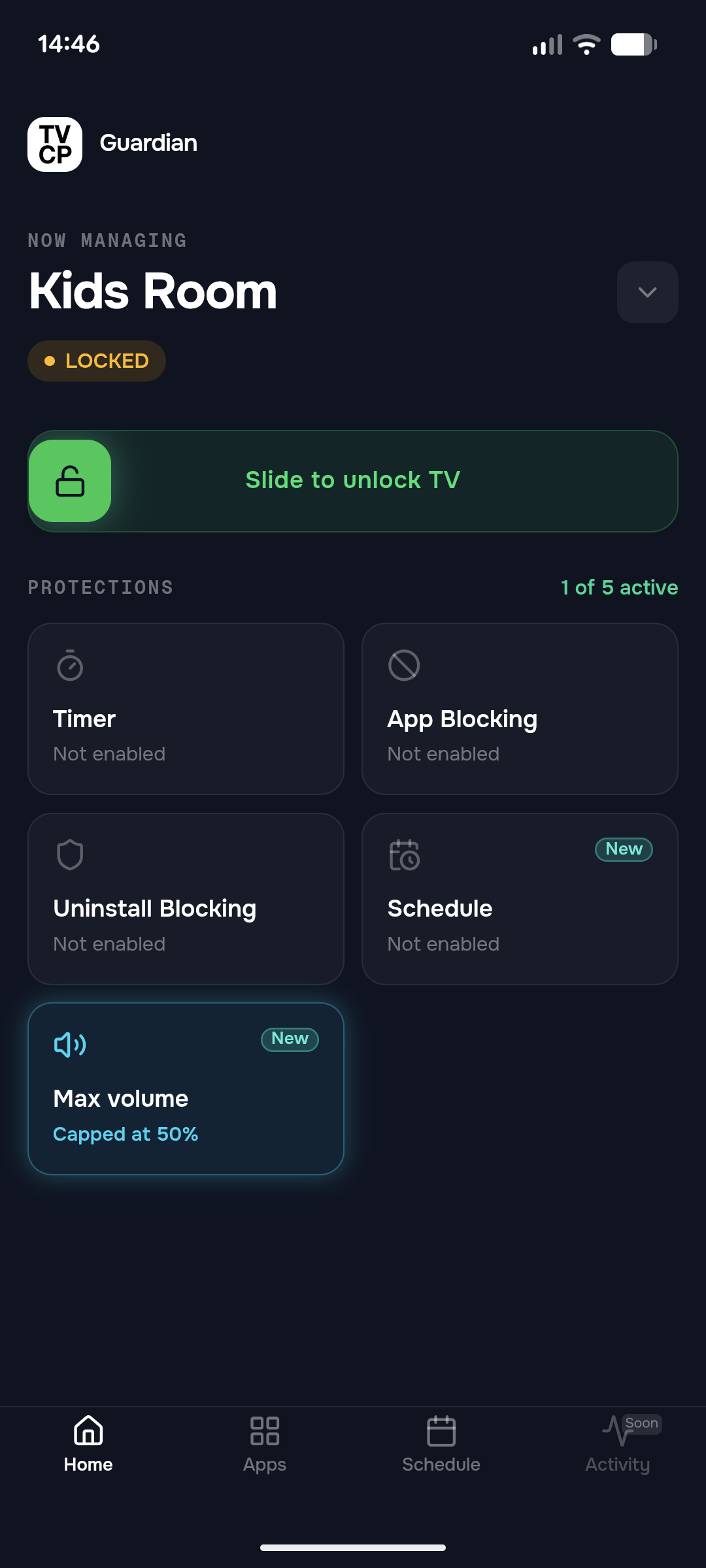
- Tap Lock TV. The app shows LOCKED once the TV confirms it.
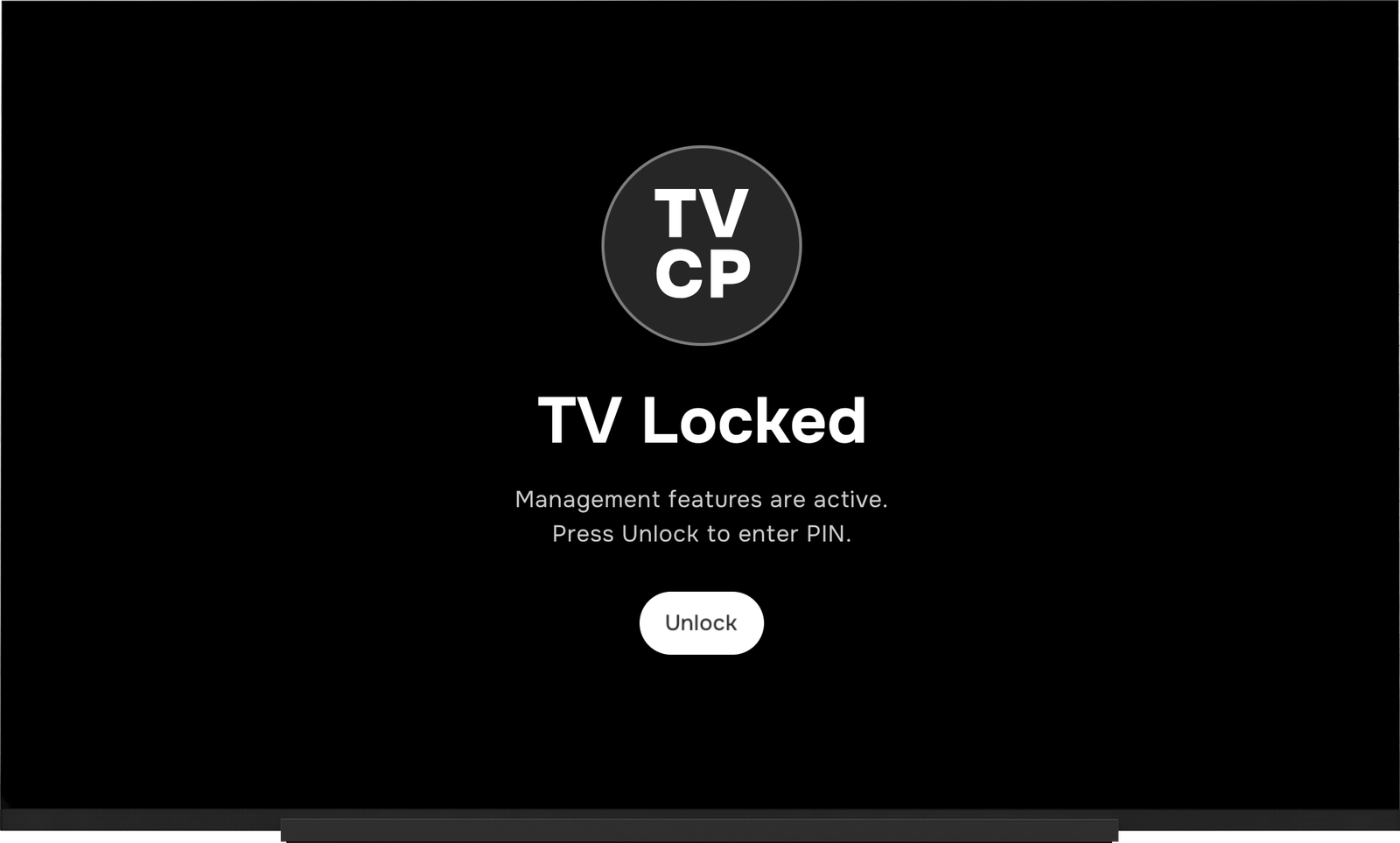
- On the TV: your child sees TV Locked. Nothing else on the TV can be used until it’s unlocked.
Unlock it from your phone
Slide to unlock TV on the Home screen. The TV is ready to use again right away. If a schedule locked the TV, the slider says Unlock now instead. See Set a schedule.
Unlock it at the TV
- Press Unlock on the lock screen with the remote.
- Enter your PIN on Enter PIN to Unlock.
If the PIN is wrong, the TV says Incorrect PIN. After several wrong tries it says Too many attempts and asks you to wait before trying again.
Good to know
- Unlocking from the Guardian app is always free, even without a subscription.
- If the app says Couldn’t reach the TV — try again, the TV is off or offline. See My TV isn’t responding to the app.
- You need a PIN to unlock at the TV. See Set your PIN.
Next steps
Set a screen time timer
Give a TV session a time limit from your phone. When it runs out, the TV goes to sleep or locks.
Set a schedule (unlock hours)
Choose the hours the TV can be used on weekdays and at the weekend. It locks itself the rest of the time.
The TV stays locked
Work out what locked the TV (a schedule, a timer or a lock from your phone) and how to unlock it.