All help topics
Set a schedule (unlock hours)
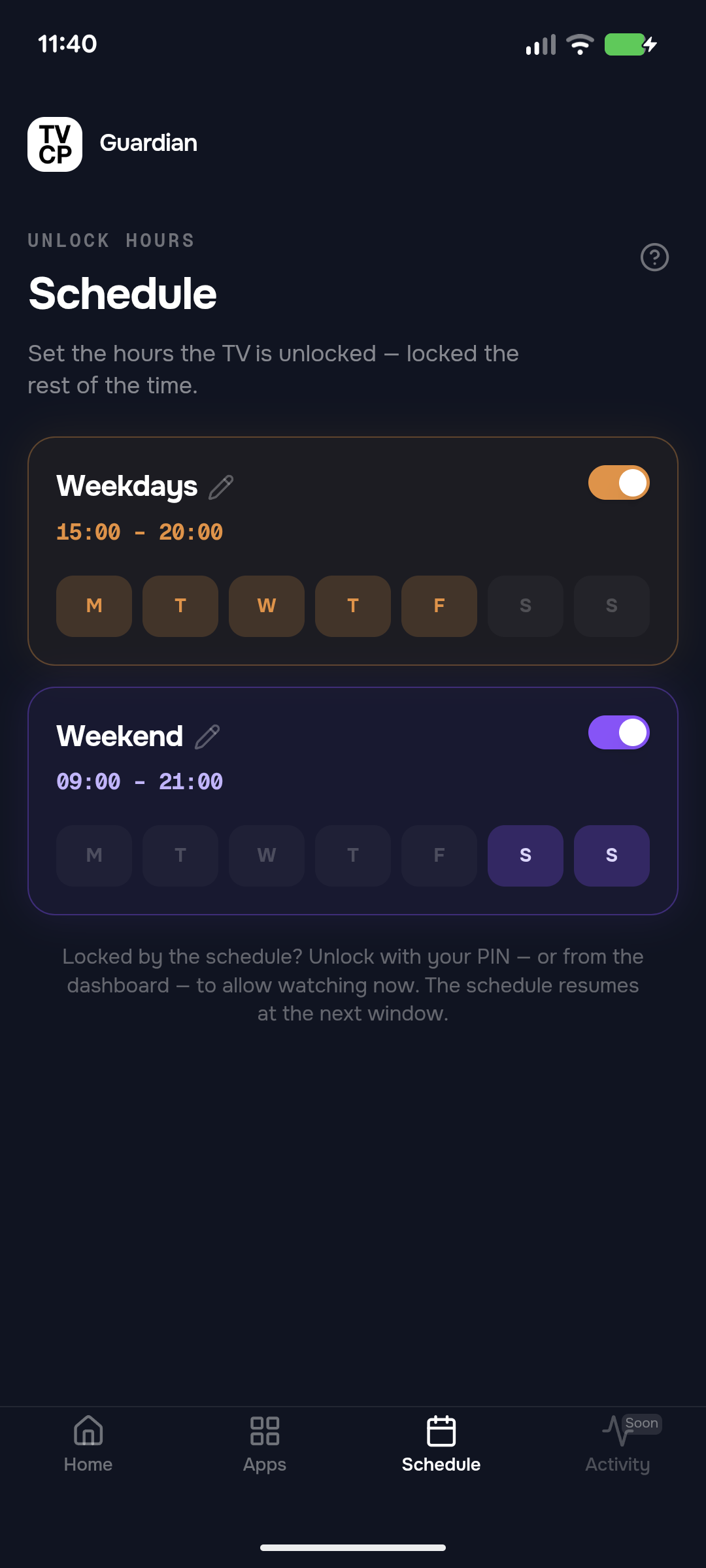
Short answer: In the Guardian app, open the Schedule tab, set the unlock hours for Weekdays and Weekend, tap Save hours and switch the card on. The TV works normally during those hours and locks itself the rest of the time.
Updated
A schedule sets the hours the TV is unlocked. Outside them, the TV locks by itself, every day, without you doing anything.
Steps
- Open the Schedule tab in the Guardian app.
- Tap the hours on the Weekdays card (or its pencil). Set unlock hours opens.
- Pick the days and set the window, for example 15:00 to 20:00. Tap Add window if you want a second one, say a morning slot.
- Tap Save hours.
- Switch the card on. Each card has its own switch.
- Do the same for the Weekend card.
What your child sees
Outside the unlock hours, the TV shows a lock screen named after the schedule, with the time it opens again, for example Opens at 15:00. It also says Parents can override anytime with the PIN.

Make an exception
- Let them watch now: when the schedule has locked the TV, the slider on the Home screen says Unlock now. The TV stays unlocked until the next scheduled lock.
- End it early: while that exception runs, tap Lock now.
- At the TV: entering your PIN on the lock screen also unlocks it. The schedule picks up again at the next window.
Good to know
- To stop the schedule, switch both cards off. With no unlock hours set, there’s no restriction: the TV works as normal.
- A timer and a schedule can run together. If the TV stays locked when you don’t expect it, see The TV stays locked.
Next steps
The TV stays locked
Work out what locked the TV (a schedule, a timer or a lock from your phone) and how to unlock it.
Set a screen time timer
Give a TV session a time limit from your phone. When it runs out, the TV goes to sleep or locks.
Lock and unlock the TV
Lock the TV from the Guardian app, unlock it with a slide, or unlock it at the TV with your PIN.