All help topics
Advanced Protection (optional): turn on debugging on your TV
Short answer: Advanced Protection is an optional extra layer that makes TVCP harder for a child to get around. To set it up, turn on Developer options on the TV, switch on USB debugging (on some TVs it is called Debugging), then choose Always allow when the TV asks.
Updated
TVCP protects your TV without it. Advanced Protection adds a hardening layer on top, for children who like to tinker. It takes one extra settings change on the TV, done once.
You can start it from your phone: in the Guardian app, tap the round button with your initials at the top of the Home screen to open Settings, tap your TV under Devices, then Advanced Protection. Or start on the TV: open TVCP, select the settings button, enter your PIN, then choose Set Up next to Advanced Protection.
Steps
- On the TV: open Settings.
- Find the build number. Go to About and select Build (on Google TV it’s Android TV OS build). The table below lists where it is on other TVs.
- Select it 7 times. This turns on Developer options.
- Go back to Settings and open Developer options.
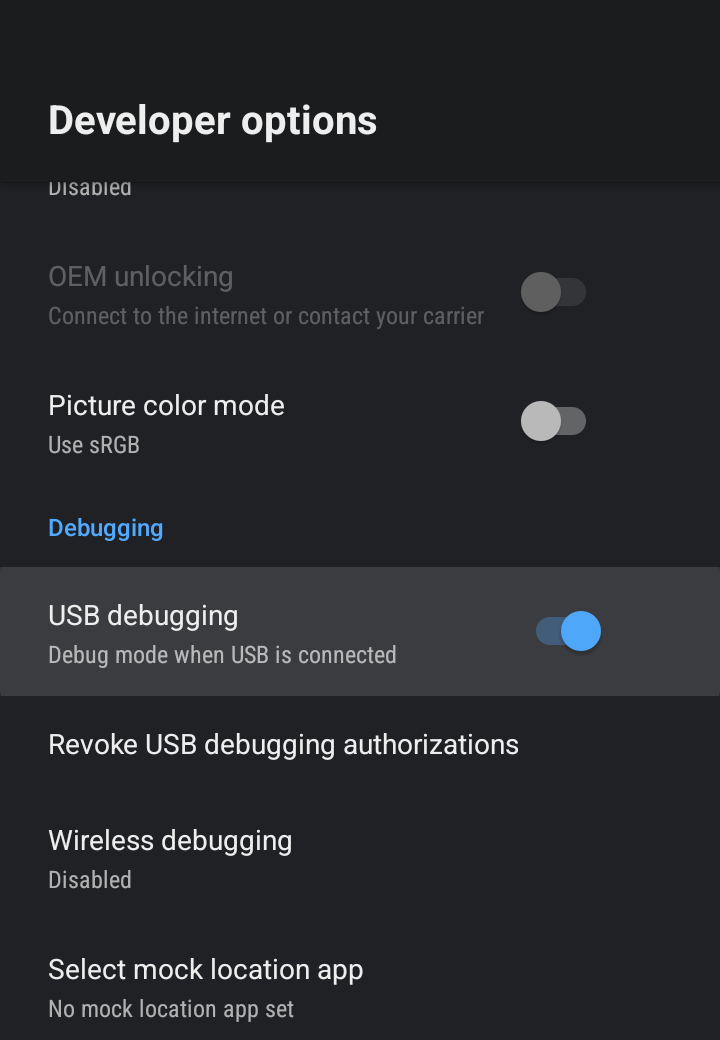
- Turn on USB debugging. On some TVs it is called Debugging.
- Open TVCP on the TV and press I’ve Enabled Developer Debugging.
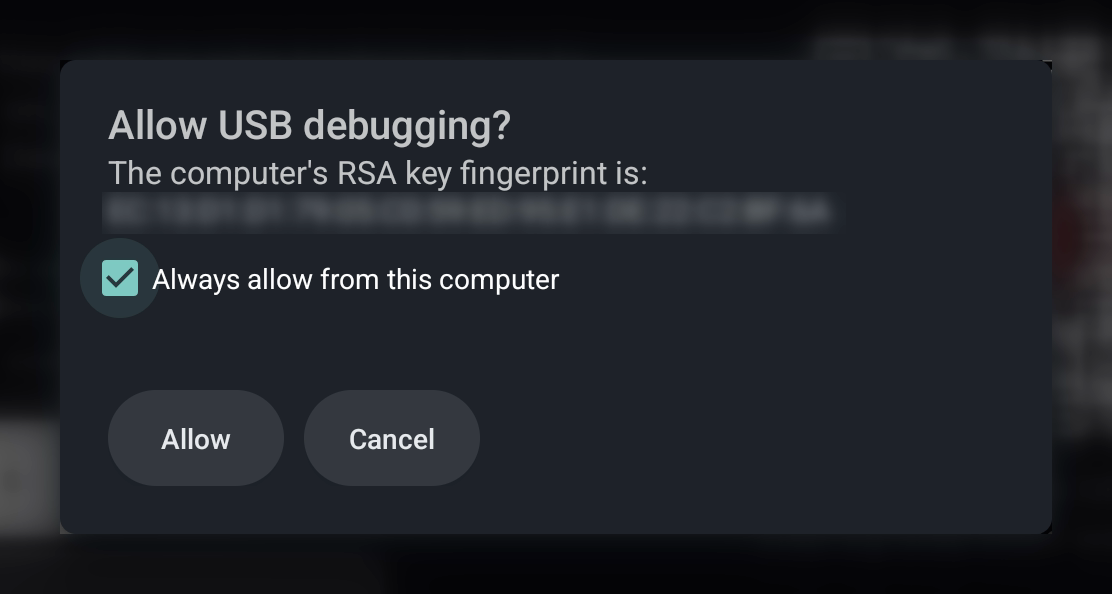
- When the TV asks to allow debugging, choose Always allow, then OK.
The menu names can differ a little between TV brands.
| TV | Where the build number is | Where Developer options is |
|---|---|---|
| Google TV | Settings → About → Android TV OS build | Settings → Developer options |
| Android TV | Settings → About → Build | Settings → Developer options |
| Nvidia Shield | Settings → Device Preferences → About → Build | Device Preferences → Developer options |
| Xiaomi Mi Box | Settings → Device Preferences → About → Build | Device Preferences → Developer options |
On Google TV, About and Developer options are often inside System.
Video walkthroughs
The setup screen on the TV also has a QR code that opens a video walkthrough on your phone.
Good to know
- On an Nvidia Shield you can turn on ADB over Network in Developer options instead. No cable needed.
- If the TV later says Protection unavailable, the debugging link has dropped. See The TV says “Protection unavailable”.
- To stop using it, open your TV under Devices in Settings, tap Advanced Protection and choose Turn off Advanced Protection. Your TV stays protected.
Next steps
The TV says "Protection unavailable"
Why a TV with Advanced Protection locks itself with Protection unavailable, and how to get it back.
Stop apps being uninstalled (Uninstall Blocking)
Uninstall Blocking stops apps being removed and keeps your child out of the TV's Settings and the Play Store.
Turn on protection: two quick settings on your TV
Grant Display over other apps and Usage access on the TV so TVCP can show the lock screen and block apps.