All help topics
Turn on protection: two quick settings on your TV
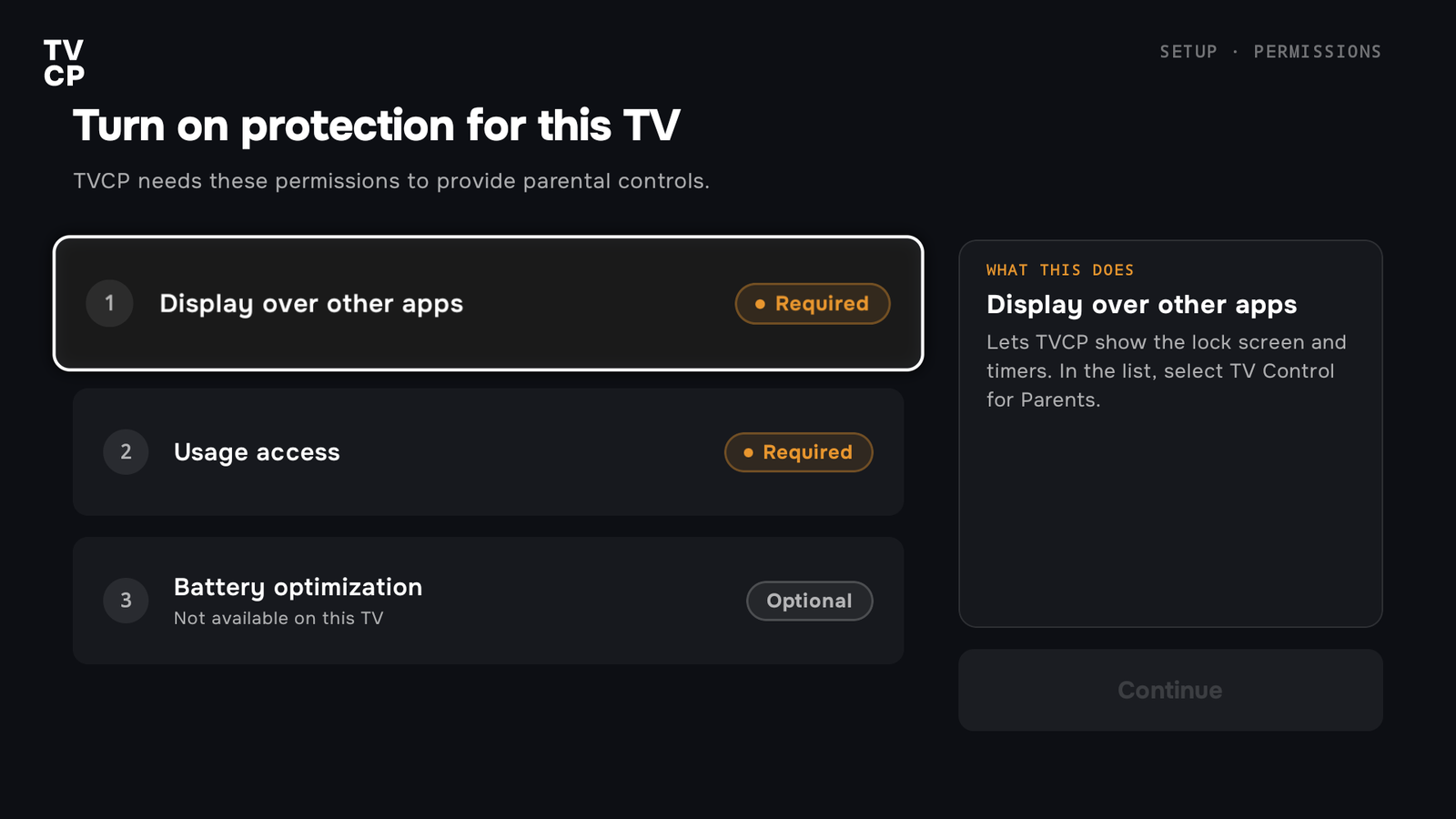
Short answer: After pairing, the TVCP app on the TV shows Turn on protection for this TV. Turn on Display over other apps and Usage access for TV Control for Parents, then press Continue on the TV.
Updated
Right after pairing, TVCP needs two settings on the TV. The Guardian app on your phone shows Two quick settings on your TV and waits while you do them on the TV.
- Display over other apps lets TVCP show the lock screen and timers.
- Usage access lets TVCP see which app is open, so it can block the ones you choose. App blocking won’t work without it.
- Battery optimization is optional. It helps TVCP keep running so protection isn’t interrupted.
Steps
- On the TV: open TVCP. You’ll see Turn on protection for this TV. Each setting that’s still needed says Required.
- Select Display over other apps. The TV opens its settings. In the list, select TV Control for Parents and turn it on. That’s the name the TVCP app has in the TV’s settings.
- Press Back to return to TVCP. The row now says Granted.
- Select Usage access and do the same: select TV Control for Parents, turn it on, then press Back.
- Optional: select Battery optimization and follow the steps on the screen. See Keep TVCP running.
- Press Continue on the TV. When both required settings are on, the TV says Protection is ready.
- On your phone: wait for the next screen. The Guardian app picks it up by itself. If it doesn’t move on, tap I pressed Continue on my TV.
If the setting doesn’t open
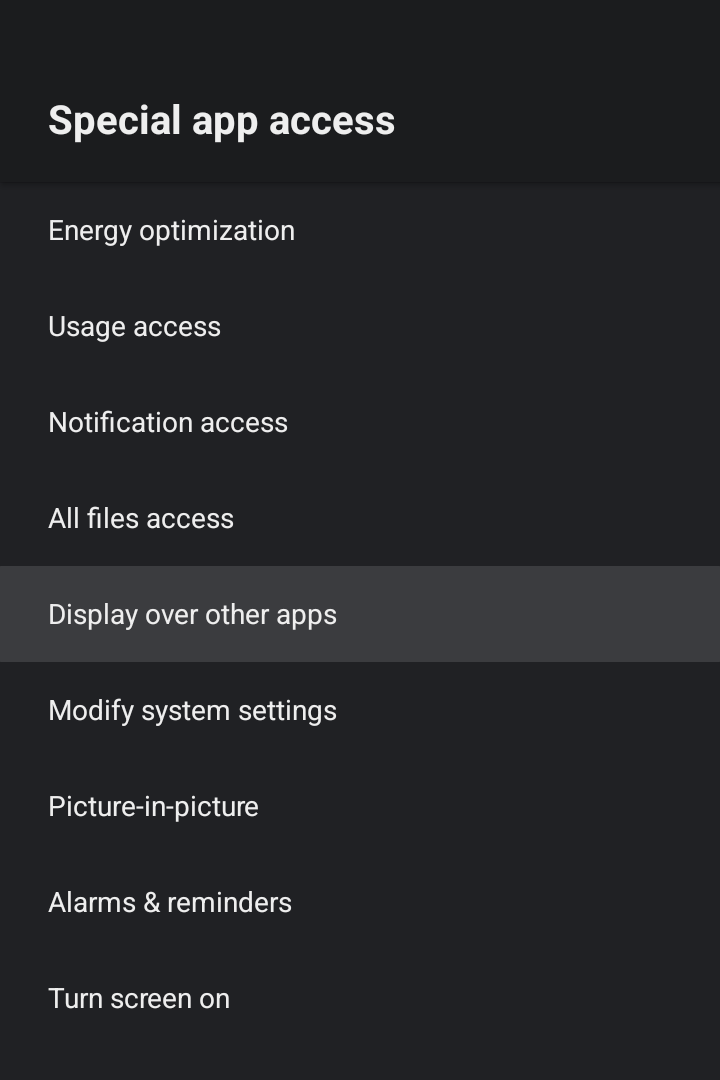
Some TVs, Xiaomi Mi Box for example, have no direct page for these settings. You may land in the TV’s Apps list instead. The way there on most TVs is Settings, Apps, Special app access, then Display over other apps or Usage access. The names can differ a little between TV brands. See Can’t find “Display over other apps” or “Usage access”.
Installed Apps Access
The TV also shows Installed Apps Access. This sends the list of apps on the TV to your Guardian app, so you can choose which ones to block. Press Agree. If you press Not now, App Blocking stays off until you allow it.
Next steps
Can't find "Display over other apps" or "Usage access" on your TV
Where the two settings TVCP needs are on most TVs, and what to do when the setting page does not open.
Keep TVCP running (battery optimization)
Stop the TV from closing TVCP in the background to save power. Optional, but it helps on TVs that close apps.
Set your PIN
Your 4-digit PIN unlocks the TV at the TV itself and protects TVCP's settings on the TV. Set it during setup or change it later.