All help topics
Stop apps being uninstalled (Uninstall Blocking)
Short answer: Uninstall Blocking stops anyone uninstalling apps on the TV, including TVCP, and blocks the TV's Settings and the Play Store. Turn it on from the Uninstall Blocking tile in the Guardian app. It needs a PIN, and you can switch it off at the TV with that PIN.
Updated
When Uninstall Blocking is on, your child can’t:
- uninstall any app, TVCP included,
- open the TV’s Settings,
- open the Play Store.
Turn it on
- Open the Guardian app and check the Home screen shows the right TV.
- Tap the Uninstall Blocking tile.
- Tap Enable. If you haven’t set a PIN yet, the app asks you to set one first.
The sheet then says Uninstall Blocking is active.
What your child sees
If your child tries one of these, the TV shows Action blocked: This action has been blocked by TVCP. A short message such as Settings blocked or Uninstall blocked may also appear.
When you need the TV’s Settings yourself
Switch Uninstall Blocking off for a moment, then back on when you’re done. You can do it from your phone (Disable on the same sheet), or at the TV:
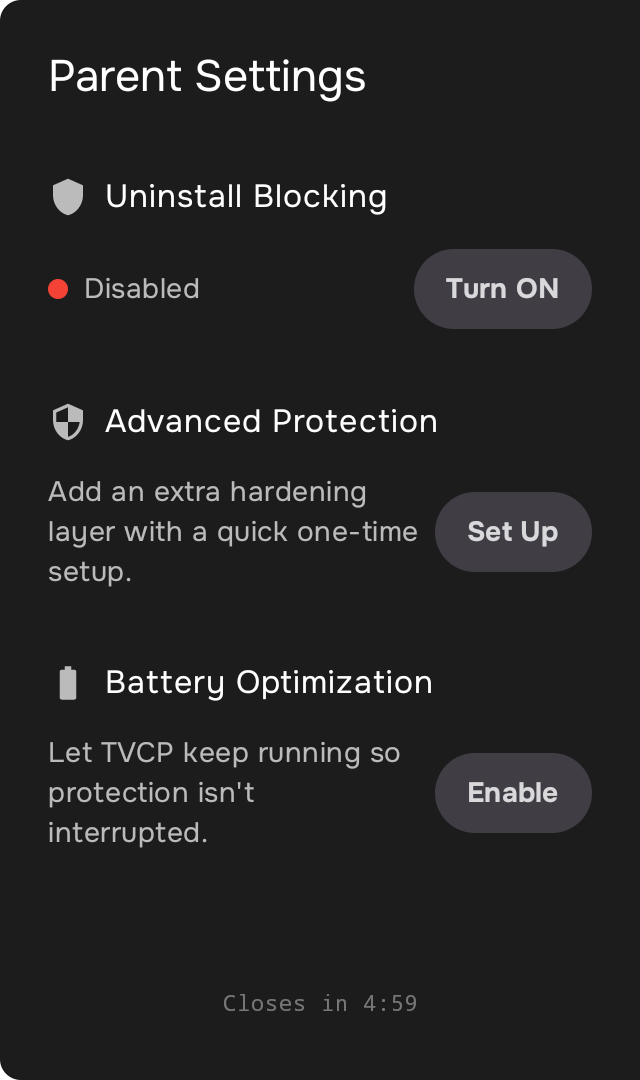
- Open TVCP on the TV and select the settings button.
- Enter your PIN. Parent Settings opens.
- Turn Uninstall Blocking off, do what you need in Settings, then turn it back on.
Good to know
- If the sheet says Update Required, update the TVCP app on the TV first. See Update the TVCP app on your TV.
- Before you remove TVCP from a TV, switch Uninstall Blocking off. See Remove a TV.
Next steps
Set your PIN
Your 4-digit PIN unlocks the TV at the TV itself and protects TVCP's settings on the TV. Set it during setup or change it later.
Remove a TV, or move TVCP to a new TV
Disconnect a TV from your account, what to do if it's switched off, and how to set up TVCP on a new TV.
Advanced Protection (optional): turn on debugging on your TV
What Advanced Protection adds, and how to turn on debugging in the TV's Developer options to set it up.