See What Apps Are Used on Your Child's Android TV or Google TV
Last reviewed: October 2026
Reviewed by: TVCP Product Team
We make TVCP, parental controls for Android TV and Google TV.
Before you set a rule for the TV, it helps to know what the rule is for. One long Saturday needs a different answer from YouTube every afternoon.
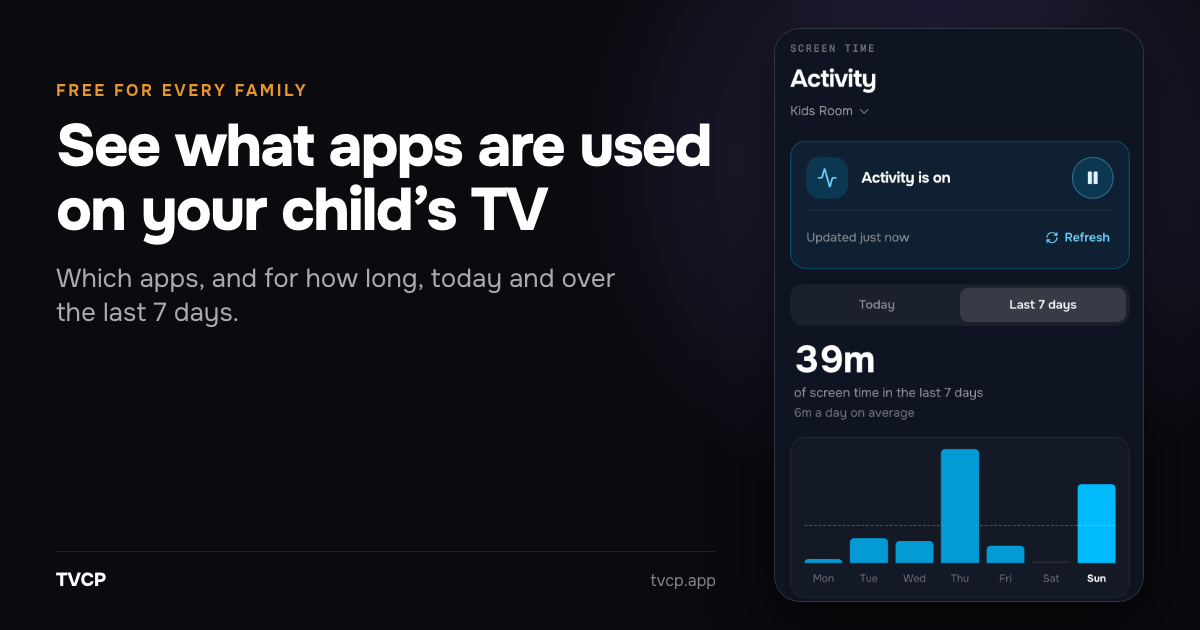
TVCP’s Activity shows you, on your phone, which apps were used on the TV and for how long, today and over the last 7 days. It’s free for every family, with or without a subscription. So you can see where the time goes first, and decide later whether anything needs to change.
How do I see what apps my child uses on the TV?
You need the TVCP app on the TV, paired with the TVCP Guardian app on your phone. If you haven’t done that yet, here’s how to set up TVCP. TVCP runs on Android TV and Google TV only.
Then it takes three steps:
- Update TVCP on the TV. Activity needs the latest TVCP app, version 1.3.0.1 or newer. If yours is older, the Guardian app shows Update Required. Here’s how to update it.
- Open the Activity tab in the Guardian app and tap Turn on Activity. You do this for each TV.
- If the TV asks, choose Agree with the remote.
Activity starts with the last 7 days, so if the TV was used, you won’t start with an empty screen.
Activity uses the same permission on the TV as App Blocking. It’s called Usage access, or App usage data on some Google TVs. If it’s off, the Guardian app says Finish setup on the TV. Open TVCP on the TV and finish setup there, or see where to find the setting.
What does Activity show?
Today shows the day’s screen time, a By hour strip of when the TV was used, and the most-used apps with the time next to each one.
Last 7 days shows the total, the daily average and a bar for each day, today included, with Top apps this week underneath. Tap a day to open it.
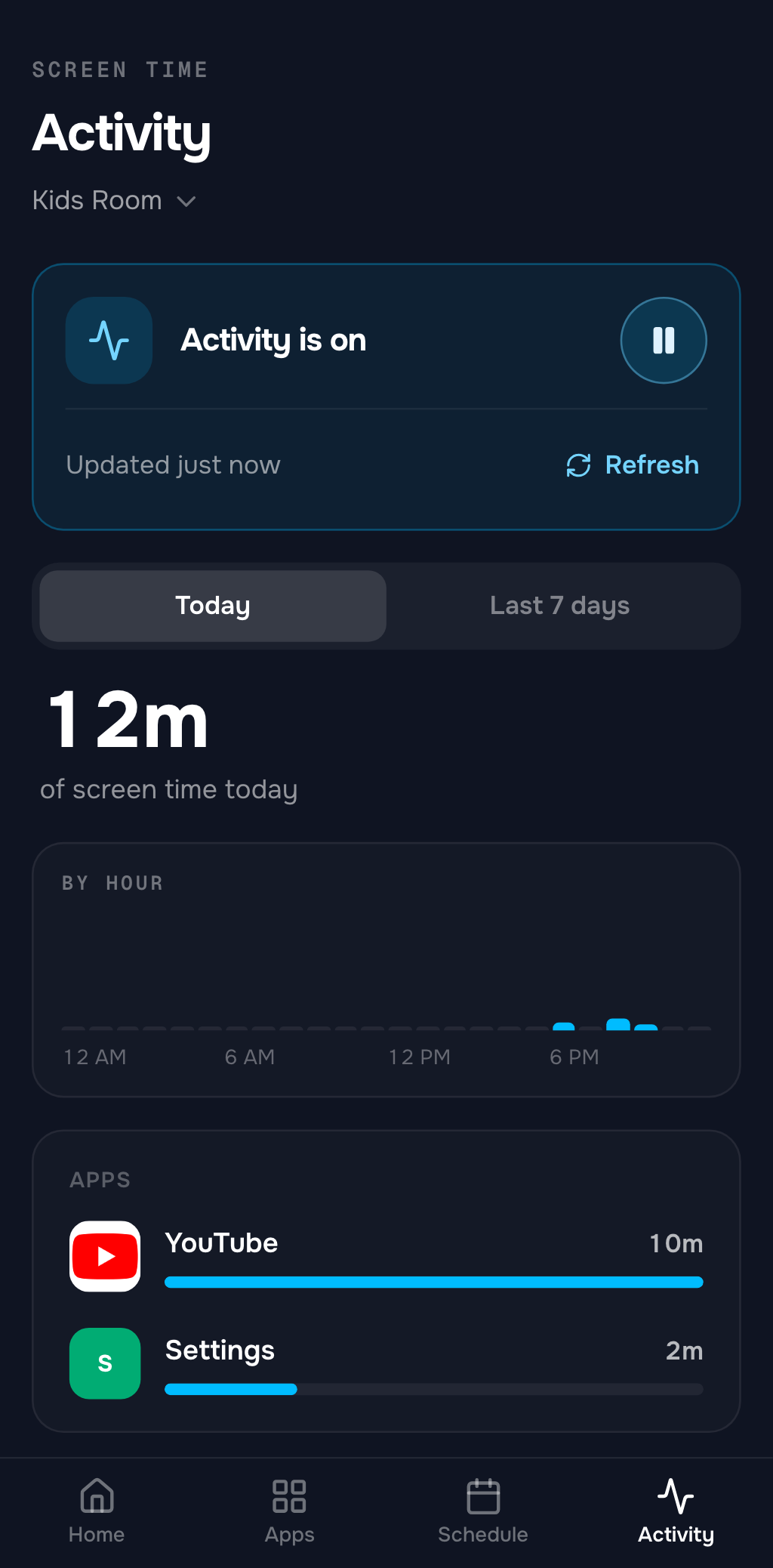
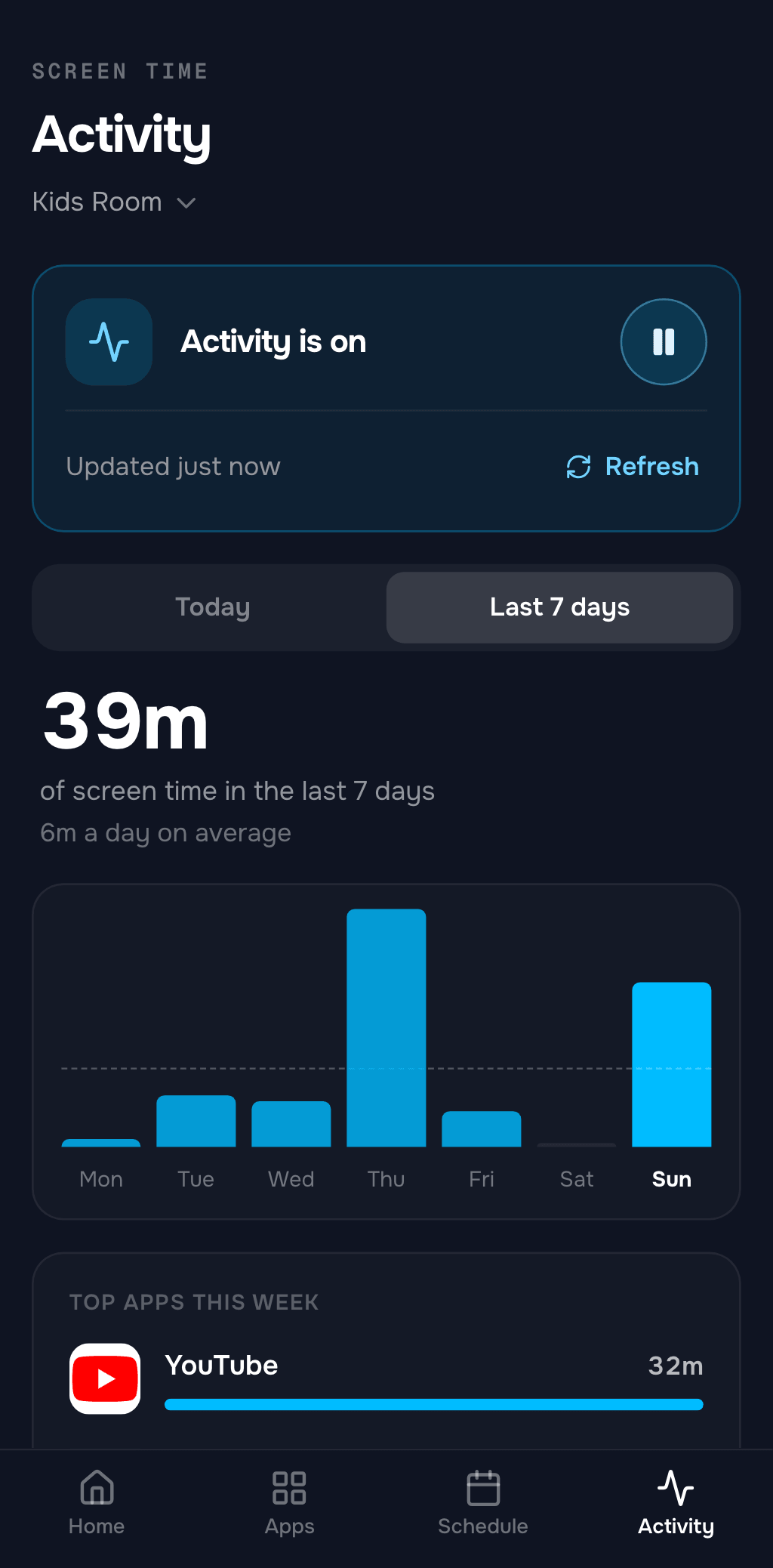
The count is time with an app open on the screen. Time on the home screen, with the screen off or behind the TVCP lock doesn’t count. The list shows the most-used apps, so it may not add up to the total, and you may see Settings or the Play Store in it.
The TV sends an update by itself every 3 hours, and the phone tells you when the last one arrived. If you want a newer one, tap Refresh. You can do that once every 10 minutes. If the TV is off, Activity updates when it’s back on.
You might also see a note that an app ran for over 3 hours in one go. The TV may have been left on, so that day’s number can be higher than what anyone watched.
What doesn’t Activity show?
- What’s playing. TVCP sees which app is open, not what’s playing inside it. You’ll see how long YouTube was open, but not which videos.
- Who was watching. The numbers belong to the TV, not to a person. If you watched something after bedtime, that time is in there too.
- Other profiles. Activity counts the TV’s main profile. If your child watches in another Google TV profile, such as a Kids profile, that time doesn’t show up. For a Google kids profile, Family Link can show app activity instead.
What happens on the TV?
The TV asks first. Google Play’s rules require an app that collects this kind of data in the background to say so inside the app and get a clear yes.
If your TV was set up before Activity existed, the screen comes up when you tap Turn on Activity. If nothing appears, open TVCP on the TV. A TV set up with a newer TVCP app asks when TVCP is first opened. If you agreed then, it won’t ask again.
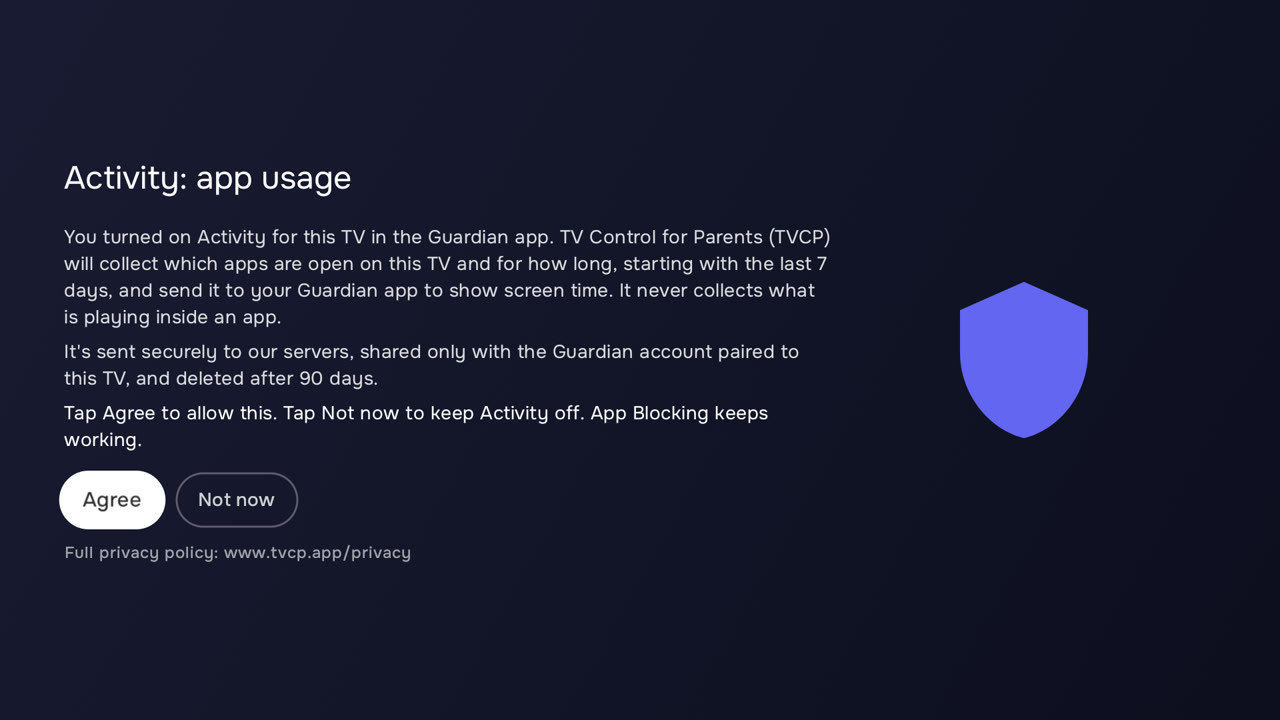
The screen says what’s collected: which apps are open on this TV and for how long, starting with the last 7 days, and never what’s playing inside an app. It’s shared only with the Guardian account paired to the TV.
Choose Agree and Activity starts. Choose Not now and it stays off until someone chooses Agree on the TV. The Guardian app has an Ask again on the TV button for that.
Once you’ve agreed, the numbers are in the Guardian app, not on the TV. If the TV allows notifications, it also keeps a quiet notice that TV Control for Parents is protecting it.
Can I turn Activity off?
Yes, at any time, for each TV. Tap the pause button next to Activity is on. The card changes to Activity is paused and nothing new is collected, though you can still see what was already sent. Tap the play button to turn it back on. It picks up from that moment, and the paused time isn’t filled in.
App usage is deleted after 90 days.
What should I do with the numbers?
Maybe nothing. If the week looks fine to you, you don’t need a new rule.
If something stands out, you’ve got something concrete to talk about. You could look at the week together and ask your child how it looks to them.
If you do want a rule, these are good next reads:
- Not sure what’s a reasonable amount? How much TV is too much? covers what the guidance says from ages 2 to 12.
- One app takes most of the time? How to block YouTube on a TV goes through the options, including time limits.
- The whole TV runs long? How to set a time limit on a smart TV shows what your TV can do by itself.
- Only certain apps should be available? How to set parental controls on Android TV walks through the restricted profile.
TVCP’s Timer, Schedule and App Blocking are there if you want them. They’re part of a subscription, with a 7-day free trial for eligible new subscribers. App Blocking can also give an app its own allowed time, and that part needs Activity on. Activity itself stays free either way.
Related guides
How Much TV Is Too Much? Screen Time by Age, 2 to 12
What WHO, AAP and Canadian guidance say about screen time from ages 2 to 12, and how to turn that advice into a workable TV routine.
Top Rated Parental Control Apps for Family TV
Compare top rated parental control apps for family TV. See how TVCP, Bark, Qustodio, and built-in controls manage smart TV screen time and apps.
How to Set Parental Controls on Android TV (2026)
Set up Android TV parental controls with a restricted profile and PIN, block apps, protect purchases, and see what changes if your TV actually runs Google TV.