How to Block YouTube on Android TV & Google TV
Last reviewed: September 2026
Reviewed by: TVCP Product Team
There are two very different things people mean when they say they want to “block YouTube” on a TV.
One is make YouTube unavailable. The other is leave YouTube available but filter what a child can watch. Android TV and Google TV can do both, but with different tools. Mixing them up is how people end up turning on Restricted Mode and wondering why YouTube still opens.
Quick answer
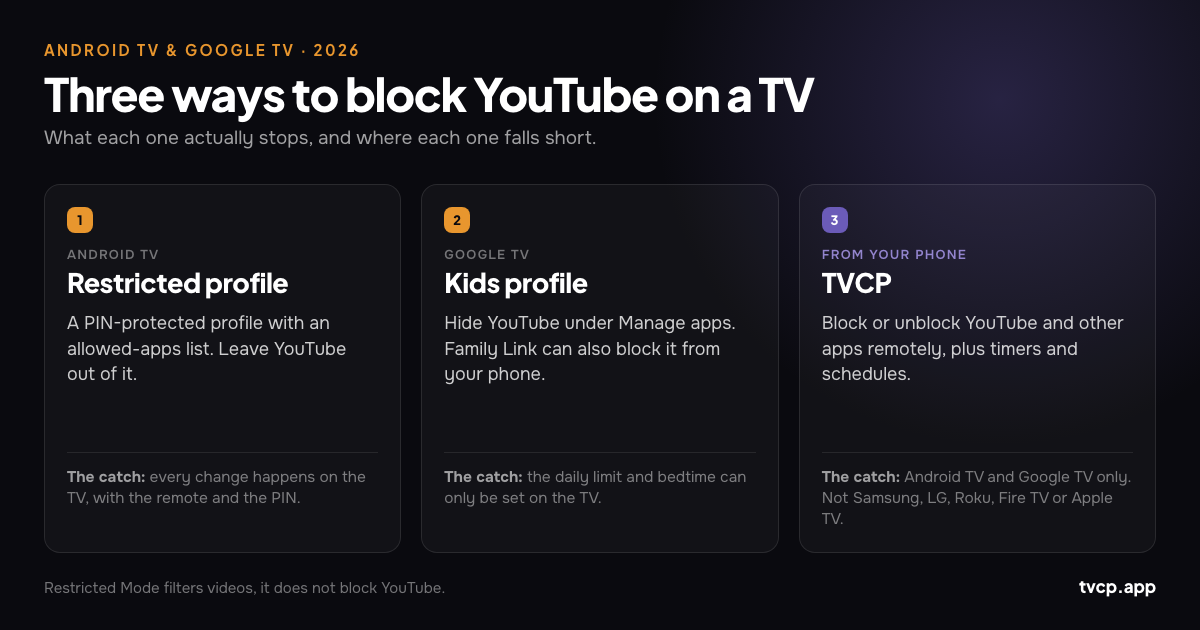
On Android TV, create a restricted profile, protect it with a PIN and leave YouTube out of the allowed-apps list.
On Google TV, use a kids profile, open Manage apps and hide YouTube. You can also block and unblock the TV version of YouTube from your phone with Family Link.
Restricted Mode does not block YouTube. It filters some potentially mature content inside the app.
If you want to switch YouTube on or off from your phone without editing the TV profile each time, TVCP can block and unblock apps on Android TV and Google TV.
Which option actually blocks YouTube?
| Method | Blocks the YouTube app? | Where you control it | Best for |
|---|---|---|---|
| Android TV restricted profile | Yes | On the TV | A permanent or mostly permanent block |
| Google TV kids profile | Yes | On the TV | Fixed app rules for a child’s profile |
| Family Link on Google TV | Yes, for the child’s profile | Phone | Remote app blocking on Google TV |
| YouTube Restricted Mode | No | Inside YouTube | Filtering some mature content |
| YouTube Kids / supervised experience | No | YouTube account/profile | A safer version of YouTube |
| TVCP | Yes | Phone | Rules that change during the day |
First decide: do you want safer YouTube, or no YouTube?
This is the most important distinction in the guide.
If you are happy for your child to use YouTube but want tighter content controls, use a supervised YouTube experience, a YouTube Kids profile and the parental settings inside YouTube. Restricted Mode can add another filter, but Google itself describes it as a way to help screen out potentially mature content, not as a guaranteed child-safety mode.
If you want no YouTube at all, you need to hide or block the app at the TV/profile level.
The steps depend on whether the television runs Android TV or Google TV.
How to block YouTube on Android TV
Android TV uses restricted profiles. A restricted profile shows only the apps you approve, and leaving it requires a PIN.
To block YouTube:
- Open Settings on the Android TV.
- Scroll to Personal and choose Security & Restrictions.
- Select Create restricted profile.
- Set a PIN your child does not know.
- Go through the list of apps and leave YouTube disabled.
- Press Back, then choose Enter restricted profile.
Inside that profile, YouTube will not be available because it was never allowed in the first place.
Google also disables access to the Play Store inside a restricted profile, so the child cannot simply open the store and reinstall an app from there. Third-party apps that do not use Google sign-in may also be unavailable, which is worth knowing before you build the profile around a long list of apps.
Save the restricted-profile PIN
This is not a PIN to improvise and forget. Google’s documented recovery if you cannot exit the restricted profile is a factory data reset, which erases the apps and settings on the device.
Put it somewhere you will actually find again.
Menu names can vary
The path above comes from Google’s Android TV documentation. Sony, Philips, TCL, Hisense, Nvidia Shield and other devices may move labels around between software versions.
If you cannot find Security & Restrictions, check whether the television is actually running Google TV. Plenty of TVs are casually described as “Android TVs” even when the current interface is Google TV.
How to block YouTube on Google TV
Google TV does not use Android TV’s restricted-profile system. It uses a kids profile.
If you do not already have one:
- Select your profile picture on the Google TV home screen.
- Choose Add account, then Add a kid.
- Select an existing child in your Google family group or follow the setup prompts.
Then block YouTube for that profile:
- Open All settings.
- Go to Accounts & Profiles.
- Select the child’s profile and verify the adult account.
- Open Manage apps.
- Uncheck YouTube.
Google TV treats checked apps as allowed and unchecked apps as hidden from the child’s profile.
Lock the exit from the kids profile
Blocking YouTube inside a kids profile only works if the child stays in that profile.
Google TV includes a Kids lock for the child profile and separate Profile lock controls for signed-in profiles. Use the available lock on your setup so switching out of the protected environment requires the adult PIN or account credential.
Without that, the YouTube setting is only as strong as the profile switcher.
Can I block YouTube on Google TV from my phone?
Yes, through Family Link, if YouTube is being managed as an app on your child’s Google TV profile.
Google’s current Family Link instructions let a parent block or unblock apps for a child from the phone. One detail is easy to miss: if an app has separate mobile and TV versions, Google says you may need to block both versions to make sure the child does not retain access on Google TV.
That makes Google TV noticeably more flexible than Android TV for a simple remote app block.
Family Link’s TV controls stop there, though. The Google TV daily viewing limit and downtime are still set on the television, not in Family Link. If the bigger issue is overall TV time, see Screen Time Limits on Android TV & Google TV.
Restricted Mode is not a YouTube lock
Restricted Mode is useful, but it answers a different question.
YouTube describes it as an optional setting that helps screen out potentially mature content. It uses signals such as video metadata, titles, Community Guidelines reviews and age restrictions. The filter is not the same thing as removing the app.
On Android TV, you can turn Restricted Mode on inside YouTube’s settings. The YouTube app still opens, search still works and videos that pass the filter can still play.
So:
- Want less mature content? Restricted Mode may help.
- Want YouTube unavailable? Block the app through the TV profile.
What about YouTube Kids?
YouTube Kids is also not a block. It is a child-focused YouTube experience with a smaller content pool and additional parental controls.
On current TV devices, Google directs families to the child’s YouTube Kids profile inside the main YouTube app. That creates a trade-off: if you hide the YouTube app completely, you may also remove the route your child uses to enter YouTube Kids on that television.
So do not block YouTube just because the normal homepage is too broad if what you actually want is YouTube Kids. Set up the child’s YouTube experience first and decide whether that solves the problem.
Four ways a YouTube block can still leak
Blocking the app is simple. Making the rule hold is where the edge cases appear.
1. The child switches profiles
This is the obvious one and the most important. A restriction attached to a kids or restricted profile disappears if the child reaches an unrestricted adult profile. Lock profile switching.
2. YouTube opens in a browser
Blocking the YouTube app does not automatically block youtube.com in a web browser. If your TV has a browser and the goal is no YouTube at all, restrict the browser too.
3. An adult profile can reinstall or sideload apps
The Play Store is unavailable inside Android TV’s restricted profile, which helps. An unrestricted profile has more options. If the child knows the adult PIN, the profile design has already failed.
4. Casting behaves differently between setups
YouTube supports linking and casting between phones and televisions. A blocked or unavailable TV app may interrupt some of those paths, but the exact behaviour can depend on the device, receiver and apps installed.
If casting is part of your household setup, test it after you apply the block instead of assuming the TV is covered.
If the rule changes every day, use a different kind of control
A profile is excellent for a static rule: YouTube is never allowed, or YouTube is always allowed inside the child profile.
It is clumsy for a moving rule: YouTube after homework, not before dinner, available on Saturday morning, blocked again tonight.
On Google TV, Family Link already gives you a good phone-side answer for app blocking. On Android TV, the built-in restricted profile has no equivalent remote switch.
TVCP is another option on both platforms. It pairs the TV app with TVCP Guardian on an Android phone or iPhone, letting you:
- Block or unblock YouTube and other installed apps from your phone.
- Lock or unlock the TV itself.
- Start a countdown so the TV locks when time runs out.
- Set allowed viewing schedules.
- Set a volume cap and use sleep-timer controls.
- Protect the controls on the television with a 4-digit PIN.
If YouTube should simply stay blocked forever, use the free built-in profile controls. They are already there and they do the job.
TVCP is more useful when the answer changes during the day or when you want the same phone-side control on Android TV as well as Google TV. It works on Android TV and Google TV only and starts with a 7-day free trial.
Try TVCP on Android TV or Google TV
Frequently asked questions
Can I completely block YouTube on Android TV?
Yes. Create a restricted profile and do not include YouTube in the allowed-apps list. The Play Store is unavailable inside that profile, so it cannot simply be reinstalled from there.
Can I block YouTube on Google TV?
Yes. In the child’s Google TV profile, open Manage apps and hide YouTube. Lock the kids profile or adult profiles so the child cannot bypass the restriction by switching profiles.
Can I block YouTube on Google TV from Family Link?
Yes. Google says Family Link can block and unblock apps for a child’s Google TV profile. If YouTube appears as separate mobile and TV versions, check that the TV version is blocked as well.
Does Restricted Mode block YouTube?
No. Restricted Mode filters some potentially mature content. The YouTube app remains available.
Can I block individual YouTube channels on the TV with Android TV parental controls?
Not through Android TV’s or Google TV’s app restrictions. Those controls hide or allow the entire YouTube app. Channel- and video-level controls belong inside YouTube’s supervised or kids experience.
Can I set a time limit only for YouTube on the TV?
The built-in Google TV daily limit applies to the child’s TV profile rather than acting as a simple YouTube-only allowance, and Android TV’s restricted profile has no built-in time limit. Family Link can block the YouTube app on Google TV, while TVCP can switch YouTube access on or off separately from its TV-wide timers and schedules.
Does blocking YouTube also block YouTube Kids?
It can. On current TV devices, YouTube Kids is accessed through the child’s profile in the main YouTube app. If you remove the app completely, you may remove access to that child experience as well.
Does TVCP work on Samsung, LG, Roku, Fire TV or Apple TV?
No. TVCP is built for Android TV and Google TV.
The bottom line
If your goal is no YouTube, block the app at the profile level: a restricted profile on Android TV or Manage apps in a Google TV kids profile. Then lock profile switching. That second part is what keeps the first part meaningful.
If your goal is safer YouTube, keep the app and use YouTube’s child/supervised controls and, where useful, Restricted Mode.
And if the real frustration is not the rule but having to walk back to the television every time the rule changes, Google TV has Family Link for app blocking and TVCP adds phone-side app control on both Android TV and Google TV.
Official sources and further reading
- Google: Block people from using specific apps or games on Android TV
- Google: Use parental controls on Google TV
- Google: Get started with a Google kids profile on Google TV
- Google: Create a profile lock on Google TV
- YouTube: Turn Restricted Mode on or off
- YouTube: Watch YouTube Kids on your TV
- YouTube: Parental controls for YouTube Kids profiles
- YouTube: Watch YouTube on your TV by linking devices
- Best Parental Controls for Smart TVs in 2026
- How to Set Parental Controls on Android TV
- Screen Time Limits on Android TV & Google TV
- TVCP parental controls for Android TV and Google TV
Related guides
Best Parental Controls for Smart TVs in 2026
Compare smart TV parental controls for Google TV, Android TV, Fire TV, Samsung, LG, Roku and Apple TV, including screen time and phone control.
How to Set Parental Controls on Android TV (2026)
Set up Android TV parental controls with a restricted profile and PIN, block apps, protect purchases, and see what changes if your TV actually runs Google TV.
Screen Time Limits on Android TV & Google TV (2026)
Set a Google TV daily limit and bedtime, see why Android TV has no built-in screen-time limit, and learn what Family Link can manage from your phone.