Top Rated Parental Control Apps for Family TV
Last reviewed: October 2026
Reviewed by: TVCP Product Team
We make TVCP, a parental control app for Android TV and Google TV. We’ve tried to keep this comparison as fair as we can.
The top-rated parental control apps are mostly built for phones, tablets and computers. The family TV is different: what works depends heavily on the operating system running on it.
On Android TV and Google TV, TVCP is built specifically for the television. It lets you lock the TV, run a timer or schedule, block apps and manage other TV rules from an iPhone or Android phone. On Fire TV, Roku, Samsung, LG and Apple TV, the starting point is usually the parental controls already built into the platform, sometimes combined with controls inside individual streaming apps or a home-network tool such as Bark Home.
The important distinction is simple: controlling a child’s phone and controlling the shared TV in the living room are not the same job.
Which parental control apps actually work on a family TV?
Very few third-party parental control apps install directly on a smart TV. Most well-known services are designed around a child’s personal device rather than a television shared by the whole family.
TVCP installs on Android TV and Google TV. You pair the TV with the TVCP Guardian app on your iPhone or Android phone, then use the phone to lock or unlock the TV, start a timer, set a schedule and block individual TV apps.
Bark can reach the TV in a different way. Bark Home, or a router with Bark built in, works at the home-network level. It can block internet access to apps and websites and apply screen-time schedules to devices on your Wi-Fi, including smart TVs. It cannot power the TV off or control local TV features.
Apps such as Qustodio and Net Nanny do not list smart TVs among their supported child devices. They are designed primarily for phones, tablets and computers.
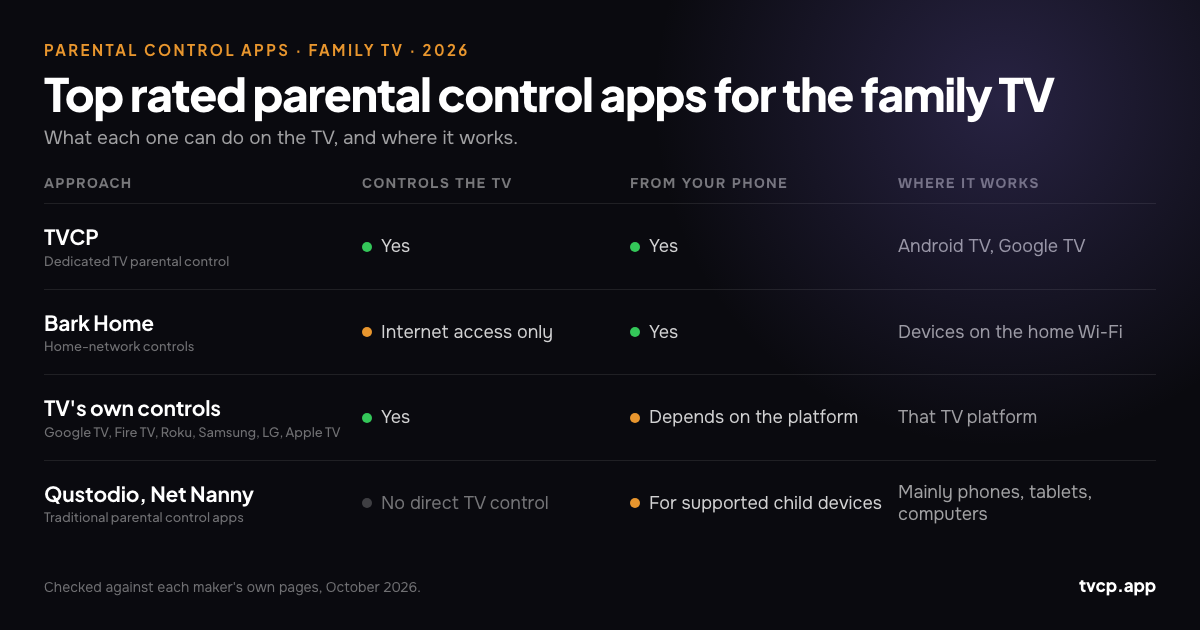
| Approach | Examples | Controls the TV directly? | Can you manage it from a phone? | Where it works |
|---|---|---|---|---|
| Dedicated TV parental control | TVCP | Yes | Yes | Android TV, Google TV |
| Home-network controls | Bark Home / router with Bark built in | Internet access only | Yes | Devices on the home Wi-Fi, including smart TVs |
| Built-in TV controls | Google TV, Fire TV, Roku, Samsung, LG, Apple TV | Yes | Depends on the platform | That TV platform |
| Traditional parental control apps | Qustodio, Net Nanny | No direct TV control | Yes, for supported child devices | Mainly phones, tablets and computers |
How do top mobile apps like Bark and Qustodio handle family TVs?
They mostly don’t treat the TV as another version of a child’s phone.
Bark is the main exception because of Bark Home. Its in-home filtering can apply app and website blocking and scheduled internet access to a smart TV connected to your home Wi-Fi. That can be useful if the problem is YouTube, a streaming service or internet access at certain times. But Bark Home works at the network level: it does not lock the TV itself, switch it off, control HDMI inputs or manage apps that do not need an internet connection.
Qustodio supports Windows, Mac, Chromebook, Android, iPhone/iPad and Kindle/Fire tablets. Smart-TV operating systems are not listed among its supported child devices. If you already use Qustodio for your child’s phone or computer, you will still need the TV’s own controls or another TV-specific solution for the living-room screen.
Net Nanny currently lists Windows, macOS and iOS on its downloads page. It does not list a smart-TV app.
Google Family Link is a partial exception on Google TV. With a Google TV kids profile, parents can use Family Link to block or unblock apps and see app activity. Google TV’s daily limit and bedtime, however, are set on the TV itself rather than through Family Link.
What are the best built-in parental controls for each smart TV platform?
Before adding another app or device, check what your TV already includes. The built-in controls vary a lot by platform.
- Google TV: Kids profiles can limit which apps a child can use, apply content restrictions, set a daily viewing limit and set a bedtime. Family Link can block or unblock apps and show app activity, while the daily limit and bedtime are configured on the TV.
- Amazon Fire TV: Fire TV has PIN-based parental controls, and compatible devices can use Amazon Kids profiles. Amazon’s Parent Dashboard supports screen-time limits and schedules for compatible Fire TV devices.
- Samsung Tizen: Samsung TVs can lock individual apps behind a PIN and restrict broadcast programmes by rating. The default PIN on many models is 0000, so change it before relying on the lock.
- LG webOS: LG TVs can lock apps, channels and external inputs behind a password. Some models also include Family Settings, with viewing-time limits, a volume limit and screen-time reports.
- Roku OS: A Roku PIN can control adding apps and purchases and can apply parental controls to The Roku Channel. Those content restrictions do not automatically apply to third-party streaming services.
- Apple TV (tvOS): Apple TV Restrictions can require a passcode for purchases and restrict apps, films, shows and other content by age rating.
Our guide to the best parental controls for smart TVs goes through the major TV platforms in more detail.
How does TVCP work for Android TV and Google TV screen time?
TVCP is made specifically for Android TV and Google TV. There are two parts: the TVCP app on the television and the TVCP Guardian app on the parent’s iPhone or Android phone. Pair them once, then manage the TV from your phone, including when you’re away from home, as long as the TV is online.
From the Guardian app you can:
- Lock and unlock the TV. When locked, the TV shows the TVCP lock screen until you unlock it remotely or enter your PIN at the TV.
- Start a one-off timer. A countdown appears on the TV, and when the timer ends the TV shows the lock screen. On TVs set up with Advanced Protection, it can go to sleep instead.
- Set a schedule. Choose when the TV is available on weekdays and at the weekend. Outside those hours, it locks automatically.
- Block individual apps, such as YouTube, Netflix, a browser or a game.
- Set a maximum volume and use Uninstall Blocking to make TVCP harder to remove without the parent knowing.
TVCP works only on devices running Android TV or Google TV with the Google Play Store. It does not run on Samsung Tizen, LG webOS, Roku OS, Amazon Fire TV or Apple TV.
There is a 7-day free trial for eligible new subscribers, so you can test it on your own TV before deciding whether the extra phone control is useful for your family.
How do you set up parental controls on a family TV step by step?
You usually don’t need to install everything at once. Start with the controls already on the TV, then add another layer only if there is something they cannot do.
- Create a child or restricted profile if your TV supports one. On Google TV, create a kids profile and choose which apps it can use. On Android TV, a restricted profile can limit the available apps.
- Set the TV’s built-in time controls. On Google TV, for example, you can set a daily limit in 15-minute steps up to eight hours and a bedtime in 30-minute steps.
- Protect leaving the child environment. Google TV can lock the kids profile so leaving it requires the parent’s Google Account PIN or password. Other TV platforms use their own PIN or password systems.
- Turn on purchase protection. Make sure purchases and app installations require authentication. The exact setting is different on each platform; Roku, for example, lets you configure its PIN through your Roku account.
- Set up the streaming apps too. Netflix, Disney+, YouTube, Prime Video and other services have their own kids profiles, maturity settings and profile locks. TV-level controls and streaming-service controls solve different problems.
- Add phone-based TV management if you need it. If your TV runs Android TV or Google TV and you want to lock it, start a timer, change its schedule or block an app from your phone, TVCP adds that layer.
Which parental control option should your family choose?
Start with the screen you are actually trying to control.
If the main problem is your child’s phone, tablet or computer, a service such as Qustodio, Bark, Family Link or another device-focused parental control app may be the right category of tool. If you also want network-level rules for a smart TV and other devices at home, Bark Home is one way to extend those controls to your Wi-Fi network.
If the main problem is the family TV, start with the TV’s built-in controls. Google TV’s kids profile, for example, may already give you the app restrictions, daily limit and bedtime you need without paying for anything else.
If the TV runs Android TV or Google TV and the missing piece is controlling it from your own phone, locking it now, giving twenty more minutes, changing tonight’s schedule or blocking an app without taking the remote, that is the gap TVCP is designed to fill.
How we checked this guide
For the products and platforms other than TVCP, we checked the manufacturers’ current support pages in October 2026 rather than relying on feature lists from comparison sites. Features can vary by TV model, region and software version, so check the manufacturer’s instructions for your exact device before you buy anything.
Official sources and further reading
- Google: Get started with a Google kids profile on Google TV
- Google: Use parental controls on Google TV
- Qustodio: Supported devices and downloads
- Bark: How in-home filtering works
- Net Nanny: Downloads
- Samsung: Make your Samsung TV kid friendly
- LG: How to use Parental Lock
- LG: How to use Family Settings
- Roku: Create, change or remove your Roku PIN
- Apple: Set parental controls on Apple TV 4K
- Amazon: Set parental controls with the Amazon Kids Parent Dashboard
- Best Parental Controls for Smart TVs
- Which TVs work with TVCP
Related guides
Parental Control Apps for Kids: What Actually Covers the TV?
Compare Family Link, Qustodio, Bark, Net Nanny and Kidslox for phones, computers and smart TVs, plus the TV controls that fill the gaps.
Which TV Has the Best Parental Controls? (2026)
Google TV has the best built-in parental controls on a smart TV for most families. Compare Android TV, Fire TV, Samsung, LG, Roku, Apple TV and phone control.
How to Set Parental Controls on Android TV (2026)
Set up Android TV parental controls with a restricted profile and PIN, block apps, protect purchases, and see what changes if your TV actually runs Google TV.