Parental Control Apps for Kids: What Actually Covers the TV?
Last reviewed: September 2026
Reviewed by: TVCP Product Team
We make TVCP, a parental control app for Android TV and Google TV. We’ve tried to keep this comparison as fair as we can.
Quick answer
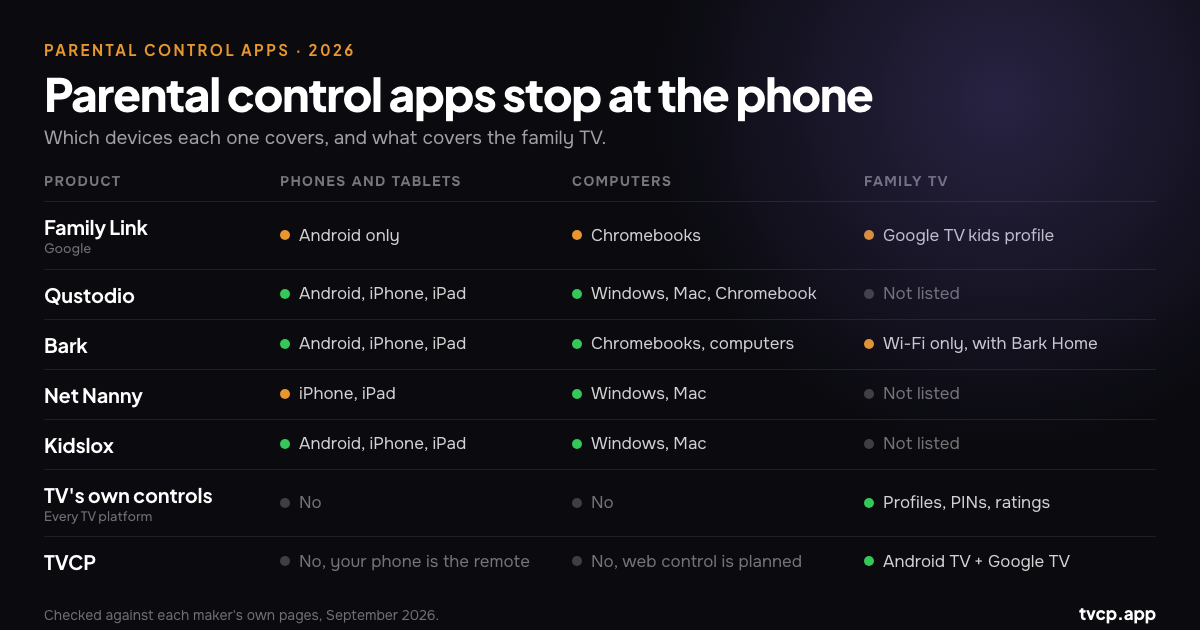
Most popular parental control apps are built around a child’s personal devices: phones, tablets and computers. That includes Google Family Link, Qustodio, Bark, Net Nanny and Kidslox.
The family TV is a different problem. These products generally do not install a child-side app on the TV itself. There are two important exceptions: Family Link can manage parts of a Google TV kids profile, and Bark Home can apply internet rules to smart TVs through your home network.
For everything else, start with the TV’s own controls: a kids profile on Google TV, a restricted profile on Android TV, or the PIN and profile controls built into Fire TV, Roku, Samsung, LG and Apple TV.
If the TV runs Android TV or Google TV and you want to lock it, run a timer, set a schedule or block an app from your phone, TVCP is built for that job.
In practice, many families end up with two layers: one tool for the child’s personal devices, and one set of controls for the shared TV.
Phone apps vs TV controls at a glance
| Product | Child phones and tablets | Computers | Family TV | Main focus |
|---|---|---|---|---|
| Google Family Link | Android | Chromebook | Google TV kids profile: block apps and view app activity from your phone | Google-account supervision across Android and ChromeOS |
| Qustodio | Android, iPhone, iPad, Fire tablets | Windows, Mac, Chromebook | TV not listed as a supported child device | Filtering, time limits, routines and reports across personal devices |
| Bark | Android, iPhone, iPad, Fire tablets | Chromebooks and computers | With Bark Home: network-level blocking and schedules | Monitoring and alerts, plus screen-time controls |
| Net Nanny | iPhone, iPad | Windows, Mac | TV not listed | Web filtering and screen-time controls |
| Kidslox | Android, iPhone, iPad | Windows, Mac | TV not listed | Daily limits, schedules and app blocking |
| The TV’s own controls | No | No | Yes | Profiles, PINs, rating limits and platform-specific time controls |
| TVCP | No, your phone is the remote | No, control from the web is planned | Android TV and Google TV only | TV locking, timers, schedules and app blocking from your phone |
How we checked this guide
For every product other than our own, we checked the company’s own website, help center or app-store information in September 2026 and linked the sources at the end.
If a company does not list a platform or feature, we do not assume it is supported. Device support changes, so check the current listing for your exact device before paying for anything.
Parental control apps for kids: what each one actually covers
Google Family Link
Family Link supervises a child’s Android phone or tablet and Chromebook. Google does not support supervising a child’s iPhone or iPad with Family Link, although a parent can use the Family Link app on their own iPhone to manage a supported child device.
On the TV, Family Link connects to a Google TV kids profile. From your phone you can view app activity and block or allow apps. Google says the Google TV daily limit and downtime are set on the TV itself, not through Family Link.
Qustodio
Qustodio supports Windows, Mac, Chromebook, Android, iPhone, iPad and Amazon Fire tablets. Its tools include content and app filtering, time limits and routines, location, and activity reports and alerts.
Its supported-device pages do not list smart TVs as child devices, so the rules you set for a phone or computer do not automatically become rules for the living-room TV.
Bark
Bark is more monitoring-focused than most of the products in this list. It can watch activity across texts, email, YouTube and many social platforms, then alert parents to things it flags as potentially concerning. It also includes screen-time schedules, web and app blocking, and location features on supported personal devices.
Bark has one separate route to the TV: Bark Home, a small device that connects to your home network. Bark says it can block internet access to apps and websites and apply schedules to devices on that network, including smart TVs and game consoles. It works at network level; it does not power the TV off.
Net Nanny
Net Nanny focuses on web filtering, with screen-time management and app controls alongside it. Its current support page lists Windows, macOS and iOS, and says Android, Kindle Fire and Chromebook are not currently supported pending a newer release.
Smart TVs are not listed as supported devices.
Kidslox
Kidslox is built around time limits and app access: daily limits, schedules, instant lock, app blocking and web filtering, managed from a parent’s phone. It supports iPhone, iPad and Android, with desktop support for Windows and Mac.
Kidslox does not list smart TVs as a supported child device. Its own smart-TV guide instead points parents toward the controls built into the TV platform.
Why phone parental controls don’t automatically cover the living-room TV
A child’s phone is usually a personal device. The family TV is shared, runs a different operating system, and often has multiple profiles, apps and inputs.
The problems are different too. On a phone, a parent may care about web filtering, location, messages or social apps. On the TV, the questions are often simpler: Which apps can open? When can the TV be used? Can the child switch out of the kids profile?
That is why a child can have a tightly managed phone and still walk into the living room and watch YouTube on the TV. The phone’s rules do not follow them automatically.
Family Link on a Google TV kids profile and Bark Home at the network level are partial exceptions, but neither turns every mobile parental-control rule into a TV rule.
TV parental controls vs mobile parental controls
Mobile parental-control apps commonly offer web and content filtering, app blocking, daily limits, schedules, location and activity reporting. Some, such as Bark, also monitor messages and social platforms for potential problems.
TV parental controls are usually more focused: kids or restricted profiles, approved apps, PIN locks, age-rating limits, purchase controls and, on some platforms, daily screen-time or bedtime settings.
The biggest practical difference is where you change the rules. Mobile tools are normally managed from the parent’s phone. Many TV controls still require the remote and a PIN on the TV itself.
There are exceptions: Family Link can manage apps in a Google TV kids profile, Amazon has Parent Dashboard controls for compatible Fire TV setups, and TVCP lets you manage Android TV and Google TV from your phone.
Alternatives to common parental control systems: what covers the TV
Google TV: kids profile
A Google TV kids profile lets you choose which apps your child can use, set content restrictions, set a daily limit and configure downtime or bedtime. Google says kids profiles are not available in every region or on every Google TV device.
Also turn on the profile lock. Otherwise, a child may be able to leave the kids profile and switch to another account on the TV.
Android TV: restricted profile
On Android TV devices that support it, a restricted profile lets you choose which apps are available and protect leaving the profile with a PIN. The Play Store is not available inside the restricted profile.
Google’s help for restricted profiles describes app restrictions, not a built-in daily screen-time limit or bedtime.
Fire TV, Roku, Samsung, LG and Apple TV
These platforms have their own parental controls, and TVCP does not run on them. The available controls differ quite a bit:
- Amazon Fire TV: PINs for purchases and app access, plus Amazon Kids and screen-time controls on compatible devices.
- Roku: a Roku PIN for adding channels or purchases, plus rating controls for supported Roku content and Live TV on Roku TVs.
- Samsung (Tizen): app and programme locks behind a PIN.
- LG (webOS): locks for apps, channels and external inputs.
- Apple TV: restrictions for purchases, apps, films and shows by age rating.
Our Best Parental Controls for Smart TVs guide walks through the major platforms in more detail.
TVCP for Android TV and Google TV
TVCP is our own product. It has two sides: the TVCP app on the TV, and the Guardian app on your iPhone or Android phone. Pair them once, then you manage the TV from your phone.
You can:
- Lock the TV and unlock it remotely or with a 4-digit PIN at the TV.
- Start a timer for one viewing session.
- Set a schedule for when the TV should be available on weekdays and weekends.
- Block apps such as YouTube or Netflix.
- Cap the volume and protect the TVCP app from being uninstalled.
TVCP works only on Android TV and Google TV devices with the Google Play Store. It does not work on Samsung, LG, Roku, Fire TV, Apple TV or Vizio. The simplest compatibility check is to search the Play Store on the TV for TV Control for Parents. See which TVs work with TVCP.
Plans cover 1 to 5 TVs, with monthly and yearly options and a 7-day free trial for eligible new subscribers.
If the built-in Google TV kids profile already gives you everything you need, keep using it. TVCP is most useful when you want to change the TV rules from your phone: lock it now, add twenty minutes today, block YouTube for the evening, or set a repeating schedule without reaching for the remote.
What is the most effective parental control setup for a family?
There is no single app that covers every screen in the same way, because the screens themselves are different.
A useful way to think about it is:
- Personal devices: choose Family Link, Qustodio, Bark, Net Nanny, Kidslox or another tool based on the phones, tablets and computers your child actually uses.
- The shared TV: use the TV platform’s own kids profile or PIN controls first, then add a TV-specific tool if you need something those controls do not provide.
That also avoids paying for features you already have. If Google TV’s built-in profile, app controls and time limits are enough for your home, you may not need anything else.
The American Academy of Pediatrics also recommends looking beyond a single screen-time number. Content, balance, watching together and screen-free times or places all matter. Technology can enforce a boundary, but it still needs a boundary worth enforcing.
How to choose the right parental control app for your kids
Before comparing feature lists, answer three questions:
- Which screens do your kids actually use? Their own phone, a tablet, school laptop, game console, bedroom TV, living-room TV. Write down the real list.
- Who owns the device? A child’s personal phone can run supervision software. A shared TV needs profiles, PINs and rules that still work when several people use it.
- What are you trying to control? Web content, messages, app access and location are different jobs from deciding when the television can be used.
Once you know those three things, compare the supported-device list first. A long feature list is irrelevant if the product does not run on the screen you are trying to manage.
Frequently asked questions
Do Qustodio, Bark, Net Nanny or Kidslox work on a smart TV?
Qustodio, Net Nanny and Kidslox do not list smart TVs as supported child devices. Bark’s regular app is not a smart-TV app either, but Bark Home can apply internet blocking and schedules to smart TVs through the home network.
Does Google Family Link work on a TV?
On Google TV, yes, through a kids profile. Family Link can block and allow apps and show app activity from your phone. Google says the Google TV daily limit and downtime are configured on the TV itself.
Google’s help pages do not describe the same Family Link integration for the older Android TV restricted-profile system.
Can one app control both my child’s phone and the TV?
Not completely in most setups. Family Link can cover a child’s Android device and parts of a Google TV kids profile. Bark plus Bark Home spans personal devices and network-level controls at home. Otherwise, it is usually one tool for the child’s devices and another set of controls for the shared TV.
Do I need TVCP if I already use Family Link?
Maybe not. If you have Google TV and the kids profile plus Family Link’s app controls are enough, there is no reason to add another tool.
TVCP adds whole-TV locking, one-off timers and schedules controlled from your phone, and it also works on Android TV.
Does TVCP work on Samsung, LG, Roku, Fire TV or Apple TV?
No. TVCP works only on Android TV and Google TV.
How much screen time is right for young children?
The World Health Organization recommends no sedentary screen time for children under 2 and no more than 1 hour a day for children aged 2 to 4, with less being better. The American Academy of Pediatrics puts more emphasis on balance, content, co-viewing and family routines rather than one universal number for every child.
The bottom line
The big parental-control apps are useful for the devices they were built around: your child’s phone, tablet or computer. The TV is usually a separate layer.
Start with the controls already built into the TV. If it runs Android TV or Google TV and you want to lock the TV, time it, schedule it or block apps from your phone, TVCP is built for that.
Try TVCP on Android TV or Google TV
Official sources and further reading
- Google: Which devices can be supervised with Family Link
- Google: Get started with a Google kids profile on Google TV
- Google: Use parental controls on Google TV
- Google: Block people from using specific apps or games on Android TV
- Qustodio: Downloads for kids’ devices
- Qustodio: Features
- Bark: The Bark app
- Bark: What is in-home filtering?
- Bark: Bark Home
- Net Nanny: Downloads
- Net Nanny: Support
- Kidslox: Parental control app
- Kidslox: Smart TV parental controls
- Amazon: Set up parental controls on your Fire TV device
- Amazon: Amazon Kids Parent Dashboard
- Roku: Set parental controls
- Samsung: Make your Samsung TV kid friendly
- LG: Parental Lock
- Apple: Set parental controls on Apple TV 4K
- American Academy of Pediatrics: Screen time guidelines
- HealthyChildren.org (AAP): How to make a Family Media Use Plan
- World Health Organization: To grow up healthy, children need to sit less and play more
- Best Parental Controls for Smart TVs in 2026
- How to Block YouTube on Android TV & Google TV
- Screen Time Limits on Android TV & Google TV
- Which TVs work with TVCP
Related guides
Top Rated Parental Control Apps for Family TV
Compare top rated parental control apps for family TV. See how TVCP, Bark, Qustodio, and built-in controls manage smart TV screen time and apps.
Which TV Has the Best Parental Controls? (2026)
Google TV has the best built-in parental controls on a smart TV for most families. Compare Android TV, Fire TV, Samsung, LG, Roku, Apple TV and phone control.
How to Block YouTube on TV: Android TV & Google TV
Block or lock YouTube on a TV or smart TV: steps for Android TV and Google TV, how to undo it, and how to block or unblock YouTube from your phone.